
To Add Icons to Transactions:
-
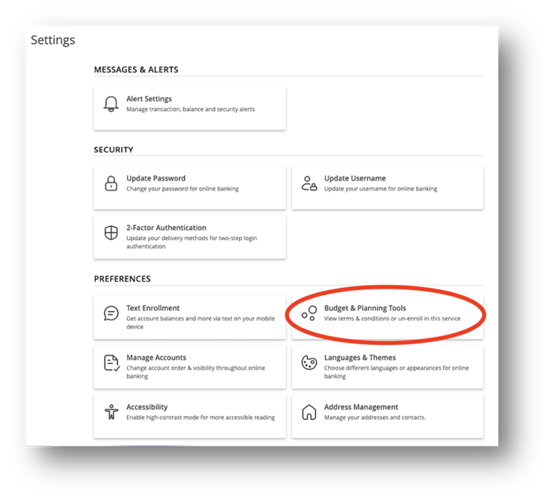
From the Main Menu, go to Settings and then Preferences > Budget & Planning Tools.
-
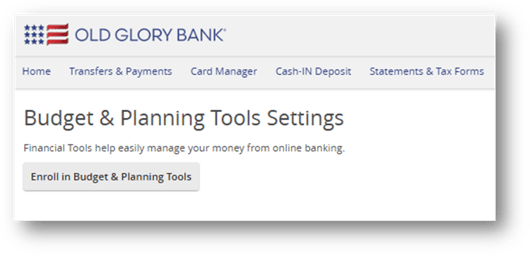
Click Enroll in Budget & Planning Tools:
-
Click Continue, check the box to Accept the Terms & Conditions, and click Get Started.
-
The budget icons will appear with your transactions shortly.
To Remove Icons from Transactions:
NOTE: This will delete your Budget & Planning Tools activity and data.
-
From the Main Menu, go to Settings and then Preferences > Budget & Planning Tools.
-
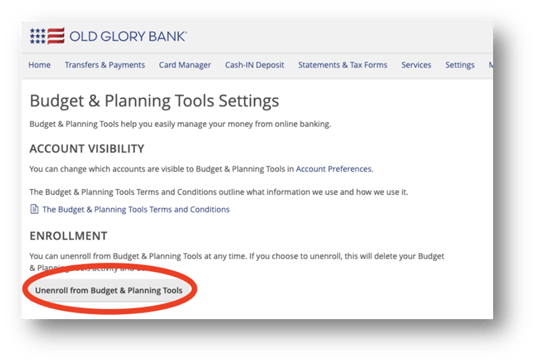
Click Unenroll from Budget & Planning Tools.
-
The Budget icons will be removed from your transactions.